A receipt in a kitchen drawer is only useful until the ink fades, the paper tears, or someone needs to find it quickly. A household receipt categories checklist gives every purchase record a place, so a repair invoice, dental payment, or appliance warranty is not mixed in with grocery slips from six months ago.
The goal is not to save every scrap of paper forever. It is to keep readable records for purchases and services that may matter later, then make those records easy to retrieve by category, date, merchant, and fiscal period.
Household Receipt Categories Checklist
Start with categories that reflect the way your household actually spends and maintains property. If a category will never help you find or explain a purchase later, it may not need its own label. Too many categories create hesitation at capture time; too few turn a search into a long manual review.
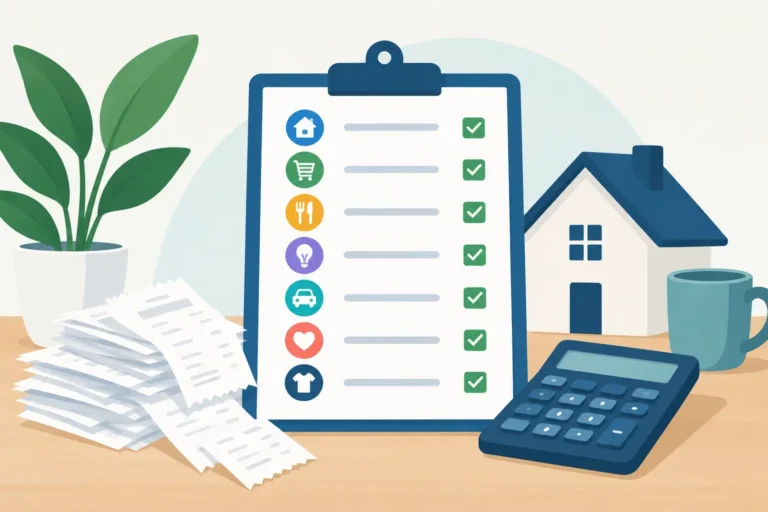
For most households, this checklist provides a practical starting point:
- Home repairs and maintenance: Plumbers, electricians, HVAC service, roof repairs, pest control, landscaping, hardware purchases, and labor invoices.
- Home improvements and furnishings: Appliances, paint, flooring, furniture, window coverings, renovation materials, and installation records.
- Utilities and communications: Electricity, gas, water, trash, internet, mobile phone, and home security payments.
- Medical and dental: Doctor visits, prescriptions, dental work, vision care, medical supplies, therapy, and related travel or parking receipts you choose to retain.
- Vehicle and transportation: Fuel, parking, tolls, repairs, tires, maintenance, inspections, transit, rides, and roadside service.
- Insurance and financial records: Premium payments, policy-related costs, bank service charges, and documents connected to major household claims or purchases.
- Education and child care: School supplies, tuition-related payments, activity fees, child care, tutoring, and educational materials.
- Warranties, electronics, and major purchases: Computers, phones, tools, cameras, small appliances, extended protection plans, and proof of purchase for items with serial numbers.
- Household supplies and groceries: Regular food, cleaning supplies, pet supplies, and everyday household purchases, when you want a spending history rather than just a card statement.
- Giving, memberships, and personal services: Charitable receipts, professional memberships, salon services, fitness costs, and subscriptions you want to monitor.
You do not have to use every category. A renter may need a simple Home, Utilities, Medical, Vehicle, and Major Purchases structure. A homeowner with an older property may separate plumbing, electrical, HVAC, and renovations because those records are requested often.
Separate routine spending from records worth preserving
Not all receipts carry the same long-term value. Grocery and coffee receipts may help with a short-term spending review, but a washing machine receipt, repair invoice, or utility bill can answer a specific question months or years later. Build your process around that difference.
Keep records for items with warranties, return periods, service histories, recurring billing questions, or a meaningful replacement cost. Also preserve receipts that support a reimbursement, insurance conversation, medical record, or household project file. The purpose is practical retrieval, not paper hoarding.
A useful rule is to scan the receipt as soon as you know it belongs in a category. Thermal paper can become unreadable surprisingly quickly, especially when stored in a warm car, wallet, or sunlit area. A clear image captured while readable is usually more useful than a carefully filed blank receipt later.
Add details that make receipts searchable
A category alone is not enough when you need a specific record. Add a short description that explains what the purchase was for, especially when the merchant name is vague or the receipt combines several items.
For example, label a receipt from a home improvement store as “Kitchen faucet and supply lines” rather than only “Home improvements.” For a medical payment, a note such as “Dental cleaning – March” can distinguish it from a later filling or orthodontic payment. If a receipt relates to an appliance, include the model or serial number when available.
The most useful fields are usually the merchant, transaction date, total, category, payment currency, and a brief note. Check extracted text and totals after scanning, particularly on crumpled receipts, low-contrast thermal paper, and multi-page invoices. OCR can save entry time, but reviewing the result keeps the record dependable.
Use fiscal periods without making home records complicated
Fiscal periods are useful for households too. They create a clean boundary for annual files, major projects, recurring reimbursements, or any situation where you need to gather records from a defined date range.
For instance, a homeowner replacing an HVAC unit might keep estimates, deposits, installation invoices, and related parts in one fiscal period and the Home improvements category. Later, the household can retrieve the full project history without sorting through unrelated receipts.
If you prepare reports, filter categories, review totals, or edit records in batches, use the free Scan Pro Desktop Companion for Windows on a full-size screen. It can make it easier to inspect a group of receipts before producing a PDF, CSV, or image-inclusive report for your own files or an accountant.
Build a capture routine you will actually follow
The strongest checklist fails if receipt capture depends on finding time at the end of every month. Keep the routine small: scan important paper receipts when you get home, import digital receipts when they arrive, and assign the category before moving on.
For purchases that create multiple documents, save the related records together. An appliance purchase may include the sales receipt, delivery receipt, installation invoice, and warranty confirmation. A vehicle repair may include the estimate, final invoice, and payment receipt. One clear category and a consistent description help those documents stay connected.
Scan Pro Receipts supports camera scanning and file import on Android, with on-device text recognition and fields you can review and correct. Records stay on your device, and backups can be sent to a location you choose rather than requiring a subscription cloud account. That setup suits households that want control over where personal receipts are stored.
Review the checklist every few months
A short review prevents categories from becoming a dumping ground. Look for receipts sitting in “Other,” duplicate records, or category names that overlap too much. If “Home repairs” contains mostly plumbing and HVAC records, splitting those categories may improve retrieval. If a category has only two receipts a year and no clear purpose, merging it may be simpler.
This is also a good time to check backups and remove temporary records you no longer need. Keep the original image with records that may require proof of purchase or item details. A CSV total is useful for sorting and reviewing, but it does not replace the information visible on the receipt itself.
When you need to share a selected set of records, choose the date range and categories first, review the included total, and remove anything that does not belong. The free Scan Pro Desktop Companion for Windows is useful for filtering, totaling, editing, exporting, or printing that report on a larger screen. Choose a concise PDF for a readable document, a CSV when someone needs structured data, or an image-inclusive report when the receipt images matter.
Keep the system private and easy to retrieve
Your categories should answer ordinary household questions quickly: When was the water heater serviced? Where is the receipt for the laptop? How much did we pay for dental work last spring? Which utility bills belong to this period?
That is the value of a household receipt categories checklist. Capture records while they are readable, give them a useful category and description, back them up to a location you control, and retrieve them when the question comes up. Download Scan Pro Receipts from Google Play when you are ready to replace the drawer, envelope, or camera roll with a workable receipt record system.
Try Scan Pro Receipts on Google Play
- Free Trial: Get full access with a 2-month free trial via Google Play.
- No Subscriptions: Keep your data private for a one-time lifetime payment of $29.99.
- Explore Features: View the full list of Reporting & Export Features.
- Tax Preparation: See how to organize your Receipt Records for Tax Time.