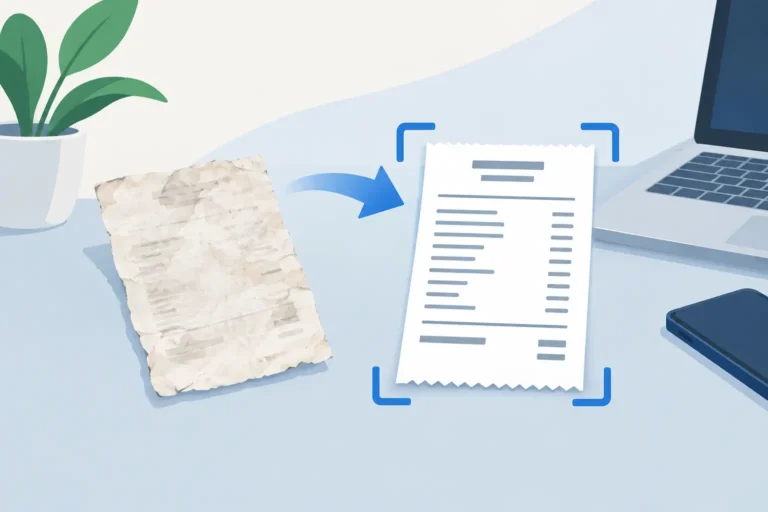
A receipt can look readable when you toss it into a glove box or kitchen drawer, then turn nearly blank a few months later. That is the problem faded receipt recovery is trying to solve: preserve the information while it is still visible, then make it easy to find when a warranty claim, reimbursement request, medical record, or bookkeeping question comes up.
Thermal paper is convenient at the register, but it is not designed for long-term storage. Heat, sunlight, friction, moisture, and plasticizers in some wallets or folders can all speed up fading. Once the printed layer has lost contrast, recovery may be limited. A clean digital copy made early is usually more useful than trying to rescue a nearly invisible original later.
Why Thermal Receipts Fade So Quickly
Most store receipts use heat-sensitive paper rather than traditional ink. The print is created by a chemical coating that darkens when exposed to heat. That coating can also react to its surroundings after the purchase is over.
A receipt left on a sunny car dashboard may darken overall and become difficult to read. One stored against certain plastic materials can fade or develop blotchy areas. Even normal handling can wear away the merchant name, date, total, and line items that matter later.
This is not just a business-expense problem. A faded pharmacy receipt can make it harder to reconstruct a personal medical purchase. A vehicle repair receipt may be needed to check prior work or warranty details. A household appliance receipt can disappear just when the product needs service.
The practical rule is simple: treat thermal receipts as temporary originals. Capture them soon, then store the paper in a cool, dry place if you still need to keep it.
Faded Receipt Recovery Starts Before the Receipt Fades
The strongest recovery workflow happens on the day of purchase. Scan or photograph the receipt while the lettering is crisp, the paper is flat, and the complete document is available.
Use even light and place the receipt on a darker, nonreflective surface if the paper is pale. Avoid a bright light pointed directly at glossy paper, since glare can hide small print. Capture the full receipt, including the merchant header and bottom section, rather than only the total. The date, payment reference, return terms, or item list may matter later.
If the receipt is long, make sure every section is readable. A single image can work for a short receipt, but a long restaurant, fuel, or supply-store receipt may need careful framing. Check the image before putting the paper away. A blurry image is easier to replace immediately than weeks later.
For digital receipts delivered by email or downloaded as files, save the original file as well. A screenshot can be useful for quick reference, but an imported PDF or image may preserve more detail and be easier to share later.
Turn the Scan Into a Usable Record
An image alone is better than a lost receipt, but an organized record is more useful when you need to retrieve several purchases at once. Add or confirm the merchant, date, amount, currency, and category while the transaction is familiar.
On-device OCR can read many receipt details and reduce typing, but it should be treated as a starting point. Light print, folded paper, unusual merchant layouts, and abbreviations can lead to mistakes. Review the key fields against the image, especially the total and date. A quick correction at capture time is far easier than guessing months later.
Assigning a category also pays off. A contractor might use categories such as fuel, materials, parking, lodging, and tools. A household record keeper may prefer medical, utilities, vehicle maintenance, home repairs, and warranties. The right category system is the one that helps you find records without overthinking every entry.
Fiscal-period organization gives the record another useful layer. If you are assembling year-end bookkeeping records or preparing a quarterly reimbursement package, receipts can stay grouped according to the period you actually need to review instead of becoming one large camera-roll archive.
Keep the Image and the Details Together
A typed amount without the original image can leave out useful context. An image without searchable fields can be slow to retrieve. Keeping both gives you a practical record: the receipt image supports the details, while the details help you search and organize.
For example, suppose you buy replacement tires in March and need the receipt the following winter. Searching for a vehicle-maintenance category, the merchant name, or the date range is much faster than opening hundreds of phone photos. If the receipt is still readable in the stored image, you can confirm the work performed and the amount paid without relying on the fading paper copy.
This approach also helps with personal documentation. Medical and dental receipts, utility payments, and household purchases often seem unimportant until someone asks for a date, amount, or proof of purchase. Capture once while the receipt is clear, then retrieve the record on your terms later.
When a Receipt Is Already Faded
If the receipt is still partly readable, handle it gently. Do not rub it, tape it, laminate it, or expose it to heat in an attempt to make text appear. These steps can cause more damage or create glare that makes scanning harder.
Try to capture the receipt under soft, indirect light. Photograph it on a dark matte background, then take a second image with the lighting angle slightly changed. Sometimes faint lettering is more visible from one direction than another. Keep the original image files even if you also crop or adjust a copy for readability.
You may be able to reconstruct missing details from related records, such as a card statement, email confirmation, order history, appointment note, or warranty registration. Those records can help identify the merchant, date, or amount, but they are not always a substitute for the receipt itself. Keep them together with the faded receipt image so the record is clear about what information came from each source.
There is a limit to what image cleanup can do. If the print layer is gone, no app can reliably recreate every item line or transaction detail. That is why preservation is more dependable than restoration.
Retrieve and Share Only What You Need
A good receipt archive should help you answer a specific request without sending an entire year of records. If an accountant asks for vehicle expenses from one period, or an office needs a reimbursement report for travel purchases, start with the relevant date range and categories. Review the matching receipts and remove anything that does not belong before creating the report.
Scan Pro Receipts supports local capture, file import, field review, fiscal periods, categories, and configurable PDF, CSV, and image-inclusive exports. Your records stay on your Android device, with backups stored in locations you choose rather than a required subscription cloud platform.
For report review, filtering, totals, editing, exporting, or printing on a larger display, use the free Scan Pro Desktop Companion for Windows. It can be useful when you want to check a group of receipts on a full-size screen before handing off a clear report.
The format depends on the request. A PDF with receipt images can work well when someone needs to see the underlying documents. A CSV can be more useful when a bookkeeper needs amounts and fields in a spreadsheet-friendly format. You can choose file names, included fields, and sharing preferences to match the task rather than rebuilding the report from scratch.
Build a Small Habit That Prevents Big Gaps
The most reliable system does not require a weekly pile of paper. Capture receipts at the point of purchase, at the end of a workday, or before leaving the parking lot. Then review the important fields, apply a category, and back up your records to a location you control.
A two-minute routine prevents the common failure point: waiting until paper receipts are faded, crumpled, misplaced, or mixed in with unrelated documents. For Android users who want a local-first workflow, download Scan Pro Receipts from Google Play and start preserving the receipts that would be hardest to replace.
The receipt in your hand is at its most useful right now. Save a clear record before time, heat, and clutter make recovery uncertain.
Try Scan Pro Receipts on Google Play
- Free Trial: Get full access with a 2-month free trial via Google Play.
- No Subscriptions: Keep your data private for a one-time lifetime payment of $29.99.
- Explore Features: View the full list of Reporting & Export Features.
- Tax Preparation: See how to organize your Receipt Records for Tax Time.