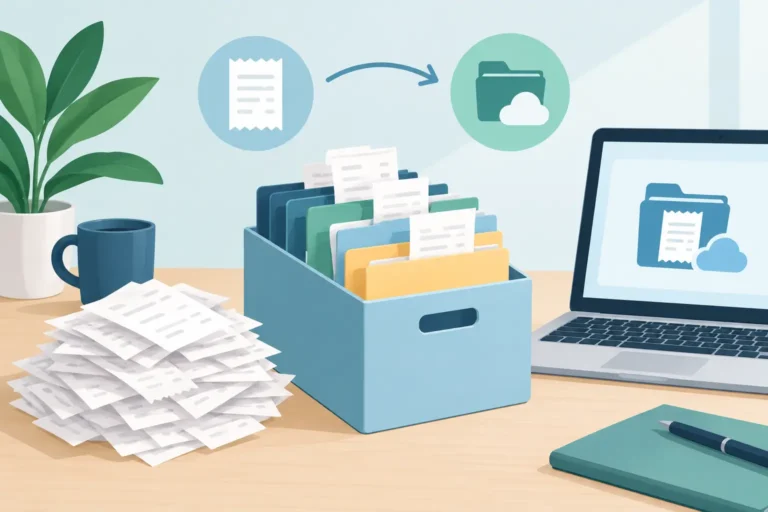
A receipt in a glove box, kitchen drawer, or jacket pocket is only useful until you need it. Thermal paper fades, ink smears, and a small slip can disappear between a purchase and a reimbursement request. Knowing how to archive paper receipts means turning those fragile records into files you can actually find, review, and share later.
The goal is not to build a complicated records system. It is to capture each receipt while it is readable, give it enough context to make sense months later, and keep a backup under your control. For a contractor, that may mean separating fuel and materials. For a household, it may mean keeping medical, warranty, utility, or vehicle records together.
Start by deciding what your receipt archive needs to answer
Before scanning a pile of paper, decide which questions you expect your archive to answer. Common examples include: What did I spend on vehicle costs last quarter? Which receipts belong to this client reimbursement? Can I find the receipt for a dishwasher repair or a dental payment?
Those questions determine the fields you need. At a minimum, preserve the merchant, date, total, payment currency, and a readable image of the complete receipt. Add a category and a short note when the reason for the purchase is not obvious. “Hardware store” is useful, but “materials for Oak Street repair” is much more useful when you are reviewing records later.
Avoid creating too many categories at the start. A short, consistent set is easier to maintain than a detailed system you stop using after two weeks. Most people can begin with categories such as travel, fuel, meals, supplies, vehicle, medical, utilities, home maintenance, and warranties, then adjust as patterns emerge.
How to archive paper receipts while they are still readable
The best time to archive a receipt is close to the purchase. This matters most for thermal receipts from gas stations, restaurants, parking machines, and many retail counters. Heat, sunlight, friction, and time can make the printing difficult or impossible to read.
Set a simple capture routine that fits your workday. You might scan receipts at the end of each day from the driver’s seat, after a supply run, or when you return home. If daily scanning is unrealistic, use one temporary envelope or folder and process it every Friday. The important part is having one collection point rather than leaving receipts in several places.
When you scan, place the paper on a plain, contrasting surface and make sure all four edges are visible. Flatten folds first. For long receipts, capture the full document in multiple images if necessary, including the total and merchant details. Check that the image is bright enough to read before putting the original away or discarding it.
A receipt scanner with on-device text recognition can help pull out details, but review the results. Store names, dates, decimal points, and totals can be misread, especially on crumpled or faded paper. The image remains your source record, while corrected fields make searching and reporting more practical.
Organize records by time, purpose, and status
A good receipt archive uses more than a date. Dates let you narrow a search, but categories, notes, and fiscal periods help you retrieve the right group of purchases quickly.
For business records, create fiscal periods that match the way you review expenses. This could be calendar months, quarters, or a business year with a different start date. Assign every receipt to the right period as you capture it. When an office asks for March travel expenses, you should not have to search through an entire camera roll or a folder of unnamed photos.
For personal records, organization often follows purpose rather than formal reporting periods. Medical and dental receipts may need to stay together. Vehicle maintenance records may be useful by vehicle. Warranty-related purchases should be easy to retrieve with the purchase date, retailer, product name, and any model or serial number noted on the receipt.
Use consistent naming if you save receipt files outside an app. A practical format is `YYYY-MM-DD_Merchant_Category_Total`. For example, `2026-04-12_RiverFuel_Vehicle_58.40`. The date sorts correctly, the merchant is visible at a glance, and the category gives the file a purpose. Do not rely on filenames alone, though. A searchable record with reviewed fields is faster to work with than hundreds of files in a folder.
Keep the original paper only when it has a reason to stay
A clear scan protects the information, but whether to keep paper originals depends on your own recordkeeping needs, the type of transaction, and any instructions from an insurer, merchant, employer, or other organization. Some receipts are worth retaining because they contain warranty information, return details, signatures, serial numbers, or terms that may matter later.
For everyday low-value purchases, a verified digital copy may be enough for your personal system. For larger purchases, repairs, medical records, or anything that may need follow-up, store the original in a labeled envelope or file by year. Do not stack unprocessed receipts in a shoebox. If paper copies remain, they should match the structure of the digital archive.
A useful rule is simple: scan first, verify the scan, then decide whether the paper has a specific purpose. That prevents the common mistake of throwing away a receipt before discovering the image was blurred or incomplete.
Back up the archive to a location you control
Your phone is a convenient place to capture receipts, but it should not be the only place they exist. Devices can be lost, damaged, reset, or replaced. Build a backup habit before you need it.
Choose a backup location you control, such as a computer, encrypted external drive, or another storage location you manage. Keep more than one copy if the records matter to you. One copy can stay on the device for quick searches, while another is stored separately in case the phone becomes unavailable.
Back up on a schedule that matches the volume of receipts. A driver or independent worker who captures receipts every day may prefer a weekly backup. A household archive may only need a monthly routine. Name backup folders by year and fiscal period so they remain understandable outside the scanning app.
Test retrieval occasionally. Open a backup and confirm that receipt images and exported files are present and readable. A backup that has never been checked is only an assumption.
Build reports when someone needs a defined set of receipts
An archive becomes valuable when you can turn it into a focused record for a specific request. Rather than sending a mixed folder of images, filter by date range and category, check the included receipts and total, remove unrelated items, and export the format the recipient can use.
For example, a territory salesperson preparing an expense submission could select the relevant fiscal period, filter travel, parking, and meals, then review the receipts before creating a PDF. An accountant may prefer a CSV with dates, merchants, categories, and totals, while a manager may need a PDF that includes receipt images.
Scan Pro Receipts supports this capture-review-organize-export workflow on Android, with local records, user-chosen backup locations, configurable PDF and CSV exports, and a two-month free trial followed by a one-time lifetime payment. For report review, editing, filtering, batch updates, totals, exports, or printing on a larger screen, use the free Scan Pro Desktop Companion for Windows.
Keep the report separate from the full archive. A report is a selected snapshot for a particular request. Your archive should remain complete, including records that do not belong in that submission.
Make archiving routine instead of a cleanup project
Receipt archiving fails when it becomes a monthly rescue operation. The pile grows, details are forgotten, and faded receipts become harder to read. A five-minute routine is usually more reliable than a four-hour catch-up session.
Capture the receipt, check the key fields, assign a category and period, and back up on schedule. If you cannot classify something immediately, add a short note and place it in a temporary review category rather than leaving it unscanned.
Download Scan Pro Receipts from Google Play if you want to capture receipts on Android, keep the records local, and prepare clear reports when a bookkeeper, employer, or household question calls for them.
The receipt you scan today is not just a photo of a transaction. It is a record you can retrieve when the paper has faded and the details still matter.
Try Scan Pro Receipts on Google Play
- Free Trial: Get full access with a 2-month free trial via Google Play.
- No Subscriptions: Keep your data private for a one-time lifetime payment of $29.99.
- Explore Features: View the full list of Reporting & Export Features.
- Tax Preparation: See how to organize your Receipt Records for Tax Time.