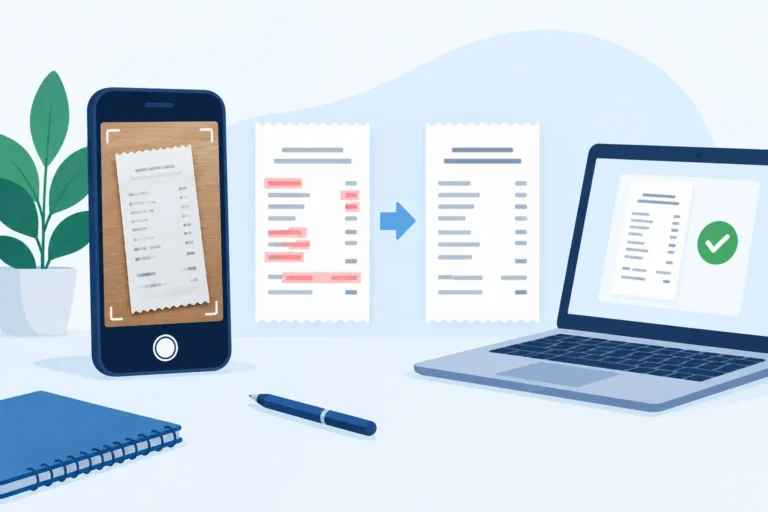
A receipt total can be off by one digit, a merchant name can be cut short, or a date can be read as the wrong month. Those small errors become a problem later when you are trying to find a purchase, prepare a reimbursement submission, or match a receipt to a bank transaction. Knowing how to correct OCR mistakes while the receipt is still in front of you keeps your records useful.
OCR, or optical character recognition, reads printed text from an image and turns it into searchable fields. It saves time, but it does not interpret every receipt correctly. Faded thermal paper, shadows, folded corners, unusual fonts, and crowded layouts can all affect the result. The practical goal is not to expect flawless OCR. It is to capture a clear image, review the important fields, and correct the details that matter to your records.
Start with a readable receipt image
The easiest OCR mistake to fix is the one that never happens. Before scanning, flatten the receipt and place it on a plain, contrasting surface. Avoid glare from overhead lights and make sure the full receipt, including the merchant header and final total, is visible in the frame.
Thermal receipts deserve extra attention. Their printing can fade quickly, especially if they have been exposed to heat, sunlight, or friction in a wallet. Scan them as soon as practical, while the numbers and dates are still readable. A saved image also gives you something to check later if you need to revisit a field.
For emailed or downloaded receipts, import the original file when available instead of taking a screenshot. A PDF or original image often has sharper text and less compression than a screen capture. If the original file is not available, crop the screenshot carefully so the receipt details fill most of the image.
Check the fields that affect retrieval and reporting
Not every OCR error deserves the same amount of attention. If a line item is slightly misspelled but the merchant, date, total, category, and receipt image are accurate, correcting the line item may not be worth the time. Focus first on fields that determine how you will search, sort, total, or share the record.
For most receipt workflows, review the merchant name, transaction date, total amount, currency, and category. Also check the fiscal period if you organize records by calendar year, business year, or another reporting cycle. A misplaced date can put an otherwise correct receipt into the wrong period and leave it out of a later report.
Consider a contractor buying supplies on December 30. If OCR reads the date as January 30, the receipt may be filed in the next fiscal period. Correcting that one field immediately makes it easier to retrieve the purchase with the rest of the year’s supply records.
Verify totals against the printed receipt
Totals are especially worth checking because OCR can confuse similar characters. A 5 may become an S, a 0 may be read as an 8, and a decimal point can disappear in a low-quality image. Compare the recognized total with the final amount printed on the receipt, not with a subtotal or a line-item price.
When a receipt includes a tip, discount, refund, or separate tax line, make sure the amount you enter reflects the record you intend to keep. If you are tracking the amount actually paid, use the final charged total. If a receipt is partly business-related and partly personal, keep the image and enter a clear note according to your own record-keeping method rather than trying to make the OCR field tell the whole story.
Normalize merchant names when useful
Merchant names can appear in several forms. A store’s receipt header may include a location number, a shortened legal name, or a line of promotional text before the actual business name. OCR may also split one name into two fields.
Use a consistent merchant name when it helps you find related purchases later. For example, recording “Northside Hardware” consistently is more useful than having separate entries for “NORTHSIDE HDW 204,” “Northside Hardware Store,” and “NORTHSIDE.” Keep the original receipt image as the source document, but make the searchable record practical for you.
How to correct OCR mistakes without creating new ones
Correcting a field should be a quick comparison, not a guess. Open the scanned receipt, look at the image, and update the recognized value only when you can read the printed information with reasonable confidence. If a character is unclear on the receipt itself, avoid inventing precision. You can use a note such as “date unclear” or enter the information you can verify from another record.
Correct one field at a time. Start with the merchant, then date, total, currency, category, and notes. This sequence reduces the chance of accidentally overlooking a key detail while switching between screens or receipts.
Keep the correction tied to the image. A typed total is useful for filtering and reporting, but the receipt image explains where that number came from. Digital preservation works best when both are kept together: the searchable fields for retrieval and the readable copy for reference.
If several receipts from the same merchant have similar recognition problems, check your capture setup before spending time on repeated corrections. A recurring shadow across the bottom of the image, for instance, can affect totals and card-payment lines every time. Better lighting or a flatter surface may solve more than manual editing can.
Organize corrections as part of your workflow
Receipt correction is easier when it happens close to capture. A practical routine is to scan or import receipts during the week, then spend a few minutes reviewing the new records before filing them into the appropriate fiscal period and category. Waiting until the end of a quarter or a reimbursement deadline creates a larger cleanup job and makes unfamiliar purchases harder to identify.
Use categories that answer the questions you expect to ask later. A driver might separate fuel, parking, maintenance, and meals. A household record keeper may use medical, dental, utilities, appliance warranties, and vehicle costs. The right category is not necessarily the most detailed one. It is the one that helps you retrieve a useful group of receipts without sorting through unrelated records.
Scan Pro Receipts supports on-device OCR and field correction so you can review records without sending receipt data to a cloud AI service. You can keep records on your Android device, back them up to a location you choose, and organize them into fiscal periods for later retrieval.
Review reports before you share them
A clean receipt record makes report preparation much faster, but it is still worth reviewing the result before you send it. Check the date range, selected categories, included receipts, and total. Remove a receipt that does not belong in that specific request, such as a personal purchase mixed into a work-related category.
This is particularly useful for a focused request. If an office asks for parking receipts from a specific month, retrieve that date range and category rather than exporting every travel expense. Confirm the total and inspect the included records before choosing a PDF, CSV, or image-inclusive format.
For larger screens and batches of records, use the free Scan Pro Desktop Companion for Windows to review, edit, filter, total, export, and print receipts. A full-size screen can make faint numbers, long merchant names, and report totals easier to check before you hand records to an accountant or submit an expense claim.
Know when to rescan instead of correcting
Manual correction has limits. Rescan or replace the source file when the receipt image is cropped, heavily blurred, obscured by glare, or too faded to read. Editing fields cannot restore text that is not visible in the source image.
If you still have the paper receipt, scan it again under better light. If it is a digital receipt, look for the original email attachment, order confirmation, or downloaded PDF. Save the clearest available version with the record. This takes less time than trying to interpret an unreadable image months later.
When the receipt cannot be rescanned, preserve what you can read and add a short note about the limitation. That is more useful than leaving misleading OCR text uncorrected. A record with a clear image, an accurate total, and a note is easier to understand later than one with confidently wrong details.
Correcting OCR is a small review step that protects the value of every receipt you capture. Build it into your routine while purchases are fresh, keep a readable image with the corrected fields, and back up your records where you control them. Download Scan Pro Receipts from Google Play to capture, review, organize, and prepare receipt records on your own terms.
Try Scan Pro Receipts on Google Play
- Free Trial: Get full access with a 2-month free trial via Google Play.
- No Subscriptions: Keep your data private for a one-time lifetime payment of $29.99.
- Explore Features: View the full list of Reporting & Export Features.
- Tax Preparation: See how to organize your Receipt Records for Tax Time.