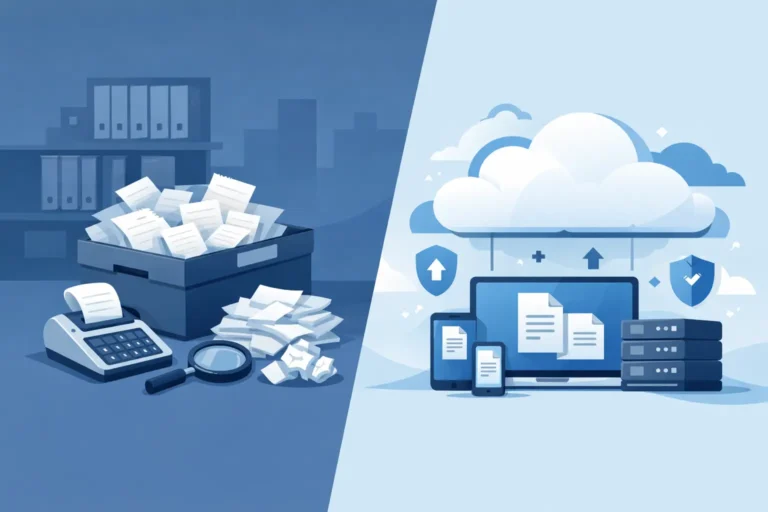
A faded fuel receipt is not much help when you need the amount, date, and merchant six months later. The real question behind local receipt storage versus cloud is not where a picture goes after you scan it. It is who controls the record, how you retrieve it, and what happens when you need it without a signal, an active subscription, or access to someone else’s account.
For contractors, drivers, salespeople, self-employed workers, and households keeping medical, warranty, or utility records, both approaches can work. The better choice depends on how you capture receipts, how often you create reports, and how much control you want over storage and backups.
Local receipt storage versus cloud: the practical difference
Local receipt storage keeps receipt images and their details on your phone, computer, or another location you select for backups. A cloud-based service generally stores the records on a provider’s servers and connects them to an online account.
That distinction affects ordinary tasks. With local storage, you can scan a lunch receipt in a parking garage or a hardware-store receipt at a rural job site, review the amount, and file it in the right fiscal period without waiting for an upload. With cloud storage, access can be convenient across several devices, but it commonly depends on an account, an internet connection for syncing, and the provider continuing to offer the service on terms that work for you.
Neither model is automatically right for every person. Someone who needs several people to see the same records may prefer a shared online system. Someone handling their own receipts on one Android phone may value a local-first workflow more, especially if privacy, offline work, and predictable ownership matter.
Why local storage suits many receipt workflows
Receipts arrive at inconvenient times. A driver may buy fuel before sunrise. A consultant may pay for parking between client meetings. A homeowner may receive a thermal-paper receipt for a water heater repair and want to preserve it before the print fades.
A local-first app lets you capture the document when it is in your hand, process the image on the device, and review the extracted fields while the receipt is still readable. Optical character recognition can save typing, but it should be treated as a starting point. Check the merchant, date, amount, currency, and category before relying on the record for a report.
Local storage also keeps the primary receipt archive under your control. You can decide when to back it up and where that backup belongs, rather than treating a vendor account as the only copy. That may mean a computer, an encrypted drive, or another storage location you manage. The useful goal is simple: retain a readable copy and make sure there is more than one place to recover it from.
Privacy is another practical consideration. A receipt can reveal where you traveled, what equipment you bought, which clinic you visited, or when a household repair happened. Storing records locally reduces the need to place that information in a platform account just to scan and organize it. It does not remove your responsibility to protect your device and backups, but it gives you more direct control over the choices.
Where cloud receipt storage can be useful
Cloud storage has genuine advantages when access from multiple places is the main need. If you routinely switch among a phone, tablet, and office computer, an online account can make the same library available without manually moving files. It can also provide an off-device copy automatically, which is better than keeping the only archive on a phone that may be lost or damaged.
The trade-off is dependency. You need to understand the account recovery process, storage limits, subscription terms, export options, and what happens if a service changes its pricing or features. A cloud copy can be useful, but it should not become a black box that makes it difficult to retrieve your own receipt images and data in a usable format.
Internet access matters too. Syncing may happen later if reception is poor, and a service may restrict features when you are offline. That may be acceptable for an office-based routine. It is less convenient for field work where receipts need to be captured, checked, and organized immediately.
Backups are the decision most people miss
Local does not have to mean one copy on one phone. Cloud does not automatically mean a complete recovery plan. The safer approach in either case is to know where the original records are, how they are backed up, and whether you can restore or export them when needed.
For a local archive, create regular backups in a location you choose and test the process occasionally. A backup that has never been opened is only an assumption. Keep enough context with the images to make them useful later: date, merchant, total, category, and the fiscal period or folder that fits your record-keeping method.
For cloud storage, confirm that you can export both the receipt images and the related details. A spreadsheet without images may not answer a later question about what was purchased. A folder of images with no dates, totals, or categories can also create unnecessary sorting work. Your records are more useful when the image and the reviewed information stay connected.
Choose based on retrieval, not capture alone
Taking a receipt photo is easy. Finding the correct receipt during a reimbursement request or while preparing records is where the system earns its place.
Consider a sales representative asked for all parking, lodging, and client-meal receipts from a specific quarter. A camera roll requires scrolling through hundreds of unrelated photos. A local receipt workflow can organize records by fiscal period and category, then retrieve the matching items and show a total before a report is created. Use the free Scan Pro Desktop Companion for Windows to review, filter, total, edit, export, or print those receipts on a full-size screen.
The same logic helps at home. If a dentist’s office asks for a payment receipt, or a warranty claim requires proof of purchase, a searchable digital record is more useful than a drawer full of fading paper. The storage location matters, but the organization method matters just as much.
A good system should let you correct fields after scanning, separate business and personal records, and choose an output that fits the request. A PDF can be useful when someone needs a readable report. A CSV can be useful when totals and fields need further review. An image-inclusive report helps preserve the visual receipt record alongside the organized data.
A local-first workflow that stays manageable
The simplest routine is capture, review, organize, back up, and retrieve. Scan or import the receipt as soon as possible. Review the recognized fields instead of assuming every character was read correctly. Assign the fiscal period and category while the purpose of the purchase is still clear.
Then back up the archive to your chosen location on a regular schedule. When a request arrives, retrieve only the relevant records, check the included receipts and total, and create the report format that fits the situation. For larger cleanups or report preparation, the free Scan Pro Desktop Companion for Windows provides a practical full-size-screen workspace for reviewing, editing, filtering, totaling, exporting, and printing receipt records.
Scan Pro Receipts follows this local-first approach on Android. It supports camera scans and file imports, on-device text recognition, field correction, fiscal-period organization, categories, currency conversion, configurable PDF and CSV exports, and user-controlled backups. The app is available on Google Play with a two-month free trial and a one-time lifetime payment.
Make the storage choice you can maintain
Choose cloud storage if shared online access and automatic cross-device availability outweigh the account and service dependencies for your situation. Choose local receipt storage if you want to work offline, keep primary records on your own device, select your backup location, and avoid building a receipt workflow around a recurring cloud platform.
The strongest choice is the one you will use consistently. Scan receipts while they are readable, review the details before they become a mystery, keep a backup you can recover, and organize records so the right document is available when someone asks for it.
Try Scan Pro Receipts on Google Play
- Free Trial: Get full access with a 2-month free trial via Google Play.
- No Subscriptions: Keep your data private for a one-time lifetime payment of $29.99.
- Explore Features: View the full list of Reporting & Export Features.
- Tax Preparation: See how to organize your Receipt Records for Tax Time.