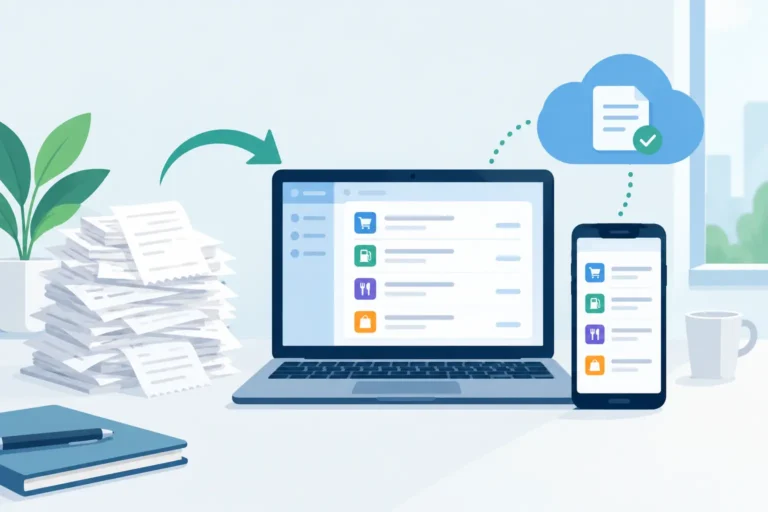
A faded gas receipt, a missing appliance invoice, and a reimbursement request from three months ago all create the same problem: you know you paid, but cannot quickly show the record. A paperless purchase history guide is not about saving every scrap of paper forever. It is about creating a usable record while the purchase details are still clear, then being able to find that record when someone asks for it.
For a contractor, that may mean separating job materials from vehicle costs before preparing records for a bookkeeper. For a household, it may mean keeping medical receipts, utility bills, and warranty purchases out of a drawer where ink fades and papers disappear. The useful part is not the scan itself. It is the system behind it: capture, check, organize, back up, and retrieve.
Start With the Purchases You May Need Again
Trying to digitize years of paperwork in one weekend usually creates a backlog that never gets finished. Start with new receipts and the paper records most likely to matter later. Thermal receipts deserve early attention because their printed details can fade quickly, especially when stored in a hot car, wallet, or glove compartment.
Keep records when they support a business expense, reimbursement, warranty, service history, medical or dental payment, utility account question, major household purchase, or vehicle cost. You do not need the same level of detail for every coffee or grocery trip. The right standard is simple: if you might need to verify the merchant, date, amount, item, or payment later, preserve it.
Digital receipts belong in the same workflow. Import a PDF, email attachment, or existing image rather than leaving it buried in an inbox or downloads folder. A complete purchase history should not depend on whether the receipt began on paper.
Capture a Clear Record Before the Paper Fades
A readable image is the foundation of a paperless purchase history. Place the receipt on a dark, flat surface, use even lighting, and make sure the full receipt is visible. Include the merchant header, transaction date, total, and any detail that explains what was purchased. For long receipts, capture all sections rather than only the total at the bottom.
Scan soon after the transaction. Waiting until the end of the week increases the chance that receipts are lost, crumpled, or mixed with unrelated paperwork. It also makes it harder to remember the purpose of a charge. A driver who buys fuel and supplies on the same day can add a useful note while the trip and job are still fresh.
Receipt scanning tools can read printed text, but OCR is a starting point, not a substitute for review. Check the merchant name, date, total, currency, and category before relying on the record. A missed decimal, a misread date, or an incomplete merchant name can make later searches less reliable.
Organize by Period First, Then by Purpose
A folder full of images is more secure than loose paper, but it is still difficult to use. The practical structure for most people begins with fiscal periods or calendar periods. When the time comes to prepare records for a monthly reimbursement, a quarterly review, or a year-end discussion with an accountant, you can work from a defined set of receipts instead of searching everything you have ever saved.
Within each period, use categories that match how you actually retrieve information. A self-employed painter may use materials, fuel, equipment, parking, and client travel. A household may use medical, dental, home repair, utilities, vehicle service, and warranties. Avoid creating dozens of nearly identical categories. If you cannot remember which category you used, it will not help when you need the record.
Add a short note when the receipt needs context. “Replacement tire for work vehicle,” “Hotel for client visit,” or “Dishwasher warranty purchase” is more useful than a vague label such as “miscellaneous.” Notes are especially helpful when the merchant name does not explain the purchase.
Use a Consistent Naming Approach
If you keep exported files or image backups, make the names useful outside the app too. A format such as `2026-04-18_Merchant_Amount_Category` can help when you are browsing a backup folder. Keep names brief, predictable, and free of sensitive details you would not want displayed in a file list.
The goal is not to turn receipt organization into a second job. It is to create enough structure that a future search takes minutes instead of an afternoon.
Keep the Image and the Details Together
A spreadsheet can track dates and totals, but it often loses the supporting document. A camera roll keeps images, but it lacks categories, period boundaries, totals, and clear export options. A strong paperless workflow keeps the receipt image with the reviewed fields that make it searchable.
For example, suppose you need all dental receipts from January through June for a benefits claim. You should be able to choose the date range, retrieve the medical or dental category, review the receipts included, and remove any item that does not belong. The resulting report should show a clear total and retain the images when the recipient needs supporting copies.
This is where purpose-specific reporting matters. A report for a reimbursement request may need dates, merchant names, categories, and totals. A record for an accountant may call for a CSV with selected fields. A warranty claim may be better served by a PDF containing the full receipt image. One export format rarely fits every request.
Review Before You Share a Report
A report is only as useful as the records included in it. Before exporting, check the date range, category selection, duplicates, totals, and unclear entries. Remove personal purchases from a work report and confirm that a refund has not been counted as a purchase. Small checks prevent avoidable back-and-forth with an office administrator, client, or accountant.
Scan Pro Receipts supports camera capture and file import on Android, on-device text recognition, field correction, fiscal-period organization, categories, currency conversion, and configurable PDF or CSV exports. Its Category Expense Reports workflow lets you select dates and categories, review the matching receipts and total, then exclude records that do not fit that specific request.
For report review, editing, filtering, totaling, exporting, or printing on a larger display, use the free Scan Pro Desktop Companion for Windows. It can import phone archives and gives you a full-size screen for checking records, batch-editing entries, and preparing the final report. The phone remains useful for capture in the field; the desktop companion is useful when a report needs closer review.
Back Up Records Where You Control Them
A paperless purchase history is only dependable if it can survive a lost, damaged, or replaced phone. Back up records regularly to a location you choose, and make sure you can locate the backup later. A backup stored only in an account you no longer use is not much better than a receipt in an envelope you cannot find.
Choose a routine that you will follow. Some people back up after each report is prepared. Others do it monthly or at the end of each fiscal period. What matters is that the receipt images and their associated records are preserved together when possible.
Local-first storage is useful for people who prefer to keep receipt data under their control and may need to work without a dependable connection. It also means you should take responsibility for your backup habit. Review a backup occasionally by opening it and confirming that it contains the records you expect.
Make Retrieval the Test of Your System
The real test is not whether you captured a receipt. It is whether you can retrieve the right group of records quickly. Once a month, try a practical search: find vehicle costs for the current period, pull household utility receipts, or locate a recent equipment purchase. If the process feels slow, simplify your categories, improve your notes, or correct the fields you skipped during capture.
A good paperless purchase history becomes quiet infrastructure. You scan while the receipt is readable, review the important details, keep records in clear periods and categories, and back them up to a place you control. When the office, accountant, warranty provider, or household question arrives later, you have something more useful than a pile of fading paper.
If your current system is a camera roll, an envelope, or a spreadsheet missing the original images, start with the next receipt. Download Scan Pro Receipts from Google Play, build a simple capture-and-review routine, and let your records become easier to retrieve with every purchase.
Try Scan Pro Receipts on Google Play
- Free Trial: Get full access with a 2-month free trial via Google Play.
- No Subscriptions: Keep your data private for a one-time lifetime payment of $29.99.
- Explore Features: View the full list of Reporting & Export Features.
- Tax Preparation: See how to organize your Receipt Records for Tax Time.