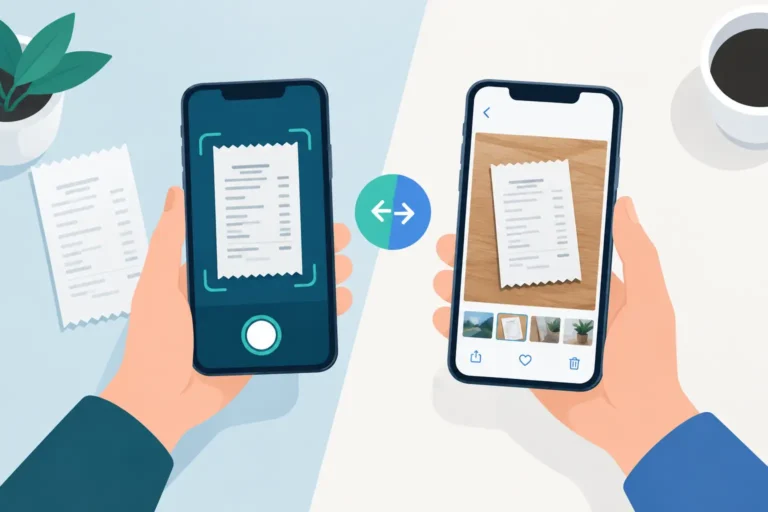
A receipt in a camera roll is easy to save and surprisingly hard to use. Three months after a client visit, a repair job, or a medical appointment, you may remember that you took a photo. Finding the right image, reading a dim total, and assembling it with related receipts is another matter. The receipt scanner versus camera roll question comes down to what you need after capture: a picture, or a usable record.
For an occasional purchase you might need to reference once, the camera roll can be enough. For recurring expenses, reimbursements, bookkeeping preparation, warranty records, or household documentation, it starts to create work at exactly the moment you need an answer. A dedicated receipt workflow gives each image a place, details you can review, and a practical path to a report.
Receipt scanner versus camera roll: the real difference
Your phone camera captures pixels. That is useful because it preserves a visual copy before thermal paper fades, gets wet, or disappears from a glove compartment. But a standard photo library is designed around memories, screenshots, and images, not vendor names, expense categories, fiscal periods, currency conversions, or export-ready totals.
A receipt scanner begins with the same useful action: take a clear photo. It then treats the photo as a record to be reviewed and organized. Optical character recognition can read likely details such as the merchant, date, and total, but the important step is review. Receipts vary widely, lighting is imperfect, and text can be faded or folded. A record you can correct is more useful than a photo whose information is trapped inside an image.
That distinction becomes clear when someone asks for a set of receipts rather than one receipt. A manager may need a monthly reimbursement report. An accountant may request expense records for a fiscal period. A homeowner may need every invoice and receipt related to a vehicle repair or a warranty claim. A camera roll holds images. A receipt workflow helps you retrieve a defined group of records and prepare it for sharing.
When a camera roll is enough
The camera roll remains a reasonable choice in a few situations. If you have one receipt for a return, you only need it for a week or two, and you can find it easily, taking a well-lit picture may be all that is required. It is also a sensible immediate backup if you have not yet decided how to store a record.
The trade-off is that photos accumulate without a reliable structure. Searching may work if you remember the date, the store name appears in a filename, or your phone recognizes the text. Those are helpful conveniences, not a consistent recordkeeping method. Screenshots of emailed receipts and downloaded PDFs make the problem larger because they are mixed with ordinary images, messages, and files.
A photo library also makes totals a manual task. You can open each receipt, write figures into a spreadsheet, and calculate the result. That may be fine for four receipts. It becomes slow when you are reconstructing a quarter of fuel, supplies, meals, parking, or client travel expenses.
What a receipt scanner adds after the photo
A receipt scanner earns its place in the steps after capture. First, it creates a readable image and extracts available details on the device. Next, you inspect and correct fields that matter to you. Then you assign the receipt to a fiscal period and category so it can be found in context rather than by scrolling through hundreds of thumbnails.
This does not mean every receipt needs a long data-entry session. A practical workflow is to capture the receipt while it is flat and readable, confirm the key fields, and move on. For a contractor, that might mean recording a hardware purchase under supplies. For a driver, it could mean keeping fuel and parking records together. For a household, it might mean filing dental receipts separately from appliance purchases and utility bills.
The value shows up later. Instead of searching for “that receipt from sometime in spring,” you can select a date range, fiscal period, category, or combination of those details. You can retrieve the matching records, check the included total, and remove an item that does not belong before sharing the final report.
Scan Pro Receipts supports this local-first workflow on Android with camera scanning and file import, on-device OCR, reviewable fields, categories, fiscal-period organization, and user-chosen backups. It is built for people who want control of their receipt records without depending on a subscription cloud platform or sending receipt data to cloud AI.
The reporting gap between photos and records
Most camera-roll systems fail at the handoff. A folder of images may preserve evidence of spending, but it does not automatically answer practical questions: What is the total? Which receipts are included? Can someone read the details without opening 30 separate photos? Can the file be named clearly for the request?
A receipt app can turn selected records into a PDF, CSV, or image-inclusive export. The right format depends on who needs it. A clear PDF can work well for a reimbursement submission or a personal archive. A CSV can help when someone needs totals and fields in a spreadsheet. An image-inclusive report keeps the receipt images attached to the corresponding records when visual documentation is useful.
Configuration matters here. You may need a report sorted by date, grouped by category, or named for a particular job, month, or fiscal period. You may also need to choose which fields appear. Those choices turn a generic export into a document that is easier for an office, bookkeeper, or accountant to review.
For report review, editing, filtering, totaling, exporting, or printing on a larger screen, use the free Scan Pro Desktop Companion for Windows. It can import phone archives and gives you room to batch-edit records, inspect receipt images, and prepare a final report without working entirely on a phone.
A practical workflow for a busy month
Consider a territory salesperson who has meals, parking, mileage-related purchases, and occasional office supplies across a month. With a camera roll, they take photos along the way. At month-end, they must search by date, identify each merchant, decide what belongs in the submission, calculate totals, and attach images one at a time or send a confusing image folder.
With a receipt scanner, the work is distributed into smaller steps. They capture each receipt as it happens, confirm the date and amount, and apply a category. At month-end, they retrieve the date range and relevant categories, review the total, exclude personal items, and create the requested export. The report is still reviewed by a person, but the retrieval and organization work has already been done.
The same pattern helps with personal records. Scan a medical receipt while the print is still legible. Save a large appliance receipt with its warranty documents. Keep utility bills or vehicle service records in categories that make sense to you. Back up the records to a location you choose so the information is not tied only to one piece of paper or one phone.
Privacy, storage, and the trade-offs to consider
A receipt scanner is not automatically the right choice simply because it has more features. It asks you to build a small habit: capture, review, categorize, and back up. If you never review records or only keep a few receipts each year, your camera roll may remain adequate.
It also helps to decide where you want your records to live. Some people prefer cloud-centered systems because they want access across multiple devices. Others want records kept on their device, available offline, and backed up only to locations they select. Neither preference is universal. The useful question is whether the storage model fits how you handle sensitive purchase and expense information.
Local-first tools are especially practical when connectivity is unreliable, when you want to avoid a recurring software fee, or when you prefer not to place routine receipt images into a third-party cloud workflow. You are still responsible for choosing and maintaining a backup. That is a feature of control, but it requires attention.
Choose the method based on the next request
The camera roll is a capture tool. A receipt scanner is a capture, retrieval, and reporting workflow. If your likely next request is “show me that one receipt,” a photo may be enough. If it is “prepare all receipts in this category for this period and show the total,” you will benefit from structured records.
Capture receipts while they are readable, correct the details that matter, and store a backup where you choose. If you are ready to replace photo hunting with organized records and configurable reports, download Scan Pro Receipts from Google Play and start with the receipts already waiting in your camera roll.
Try Scan Pro Receipts on Google Play
- Free Trial: Get full access with a 2-month free trial via Google Play.
- No Subscriptions: Keep your data private for a one-time lifetime payment of $29.99.
- Explore Features: View the full list of Reporting & Export Features.
- Tax Preparation: See how to organize your Receipt Records for Tax Time.