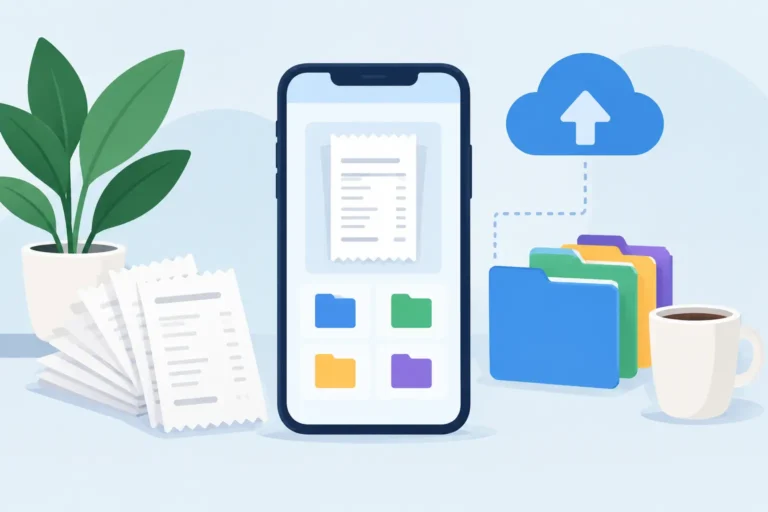
A receipt is only useful when you can find it at the moment someone asks for it. That might be a customer reimbursement, a monthly bookkeeping handoff, a warranty claim, or a question about last spring’s vehicle repair. Deciding where to store digital receipts is less about finding one magic folder and more about building a simple system you will keep using.
For most independent workers and households, the practical answer is to store receipt records in a primary location you control, organize them consistently, and maintain a separate backup. The phone can be an excellent place to capture and review records, but it should not be the only place those records exist.
Where to Store Digital Receipts: Start With Control
A camera roll is convenient for about a day. After that, receipt photos get mixed with job-site pictures, screenshots, family photos, and downloaded files. Searching becomes slow, and the image may not contain enough context to tell you whether a charge was for supplies, fuel, a medical visit, or a household purchase.
A better primary location is a receipt app or structured folder system that keeps the image together with useful details: purchase date, merchant, total, category, currency, and notes. The right setup depends on how you work, but it should let you retrieve records by the questions you actually ask. “Show me vehicle costs from March” is more useful than scrolling through 900 unnamed images.
Local storage is a sensible choice when privacy and access matter. It keeps your working receipt records on your device instead of making a third-party cloud account the center of your workflow. It also supports work in basements, rural locations, warehouses, or anywhere an internet connection is unreliable.
Local-first does not mean keeping everything on one phone forever. It means you choose the storage and backup locations rather than being locked into a subscription platform’s account and rules.
Use a Primary Location and a Separate Backup
Treat receipt storage as two jobs. Your primary location is where you capture, review, organize, and retrieve records. Your backup is the separate copy you can restore if a phone is lost, damaged, replaced, or reset.
For a sole proprietor, the primary location may be an Android receipt app with records organized into fiscal periods and categories. A contractor might keep a current fiscal year active on the phone, then create a backup archive at the end of each month. A household user might keep medical, dental, utilities, warranty purchases, and vehicle service receipts in the same system, separated by clear categories.
The backup can be a computer, external drive, or a cloud-storage folder you personally manage. Each option has a trade-off:
- A Windows computer is easy to review on a larger screen and works well for regular archive copies.
- An external drive creates an offline copy that is not dependent on a service account, but it needs to be stored safely and checked occasionally.
- A user-managed cloud folder can be convenient for recovery and access across devices, but it depends on account security and internet access when you need to restore files.
- A combination of computer and external-drive backups gives you more protection, though it requires a little more routine.
The key is separation. A backup stored only on the same phone does not help much if the phone itself fails. Set a schedule that matches your volume: weekly for frequent business purchases, monthly for lighter personal records, and before replacing or resetting a device.
Organize Around Retrieval, Not Around Perfection
You do not need an elaborate folder tree to keep useful records. You do need consistent labels. Start with the information you are likely to need later: date, merchant, amount, category, and fiscal period. Add a short note when the receipt needs context, such as “client site parking,” “truck brake repair,” or “dental prescription.”
Categories should be broad enough to use quickly and specific enough to retrieve meaningful groups. For example, a driver may use fuel, maintenance, parking, tolls, and meals. A salesperson may use mileage-related costs, lodging, customer meals, supplies, and office expenses. At home, medical, utilities, repairs, appliances, and warranties are often more practical than a long list of highly detailed labels.
Fiscal-period organization is especially helpful when records span multiple years. Rather than placing every receipt in one endless archive, keep each period distinct. When it is time to prepare records for a bookkeeper or review a past spending category, you can search within the relevant period instead of sorting through years of unrelated purchases.
Do not wait until the end of a month to correct unreadable or incomplete fields. Optical character recognition can save entry time, but receipt layouts vary, ink fades, and photos can be blurry. Review the merchant, date, and total while the paper receipt is still in hand. A 20-second correction at capture is far easier than deciphering a faded image six months later.
Keep the Original Image With the Record
A typed amount alone is not a receipt record. Keep a clear image or imported digital receipt with the fields you enter or review. This preserves the source details when you need to check an item later, and it helps with receipts printed on thermal paper that may fade surprisingly fast.
For paper receipts, scan them soon after purchase. Place the receipt on a dark, flat surface, avoid shadows, and make sure the full document is visible. For emailed or downloaded receipts, import the original file when possible instead of taking a screenshot. Imported files are often clearer and retain more of the original layout.
You can discard paper only according to your own record-keeping needs and any requirements that apply to your situation. Many people prefer to keep the physical copy temporarily for larger purchases, warranties, medical bills, or any receipt that may be questioned later. A clear digital copy still gives you a practical working record before paper is damaged or misplaced.
Prepare Reports Without Moving Your Whole Archive
There is a difference between storing records and sending records. Your full receipt archive should remain organized in your chosen primary location, while reports should be created for a specific purpose.
Suppose an office asks for parking and supplies receipts from a particular date range. Instead of sending a complete year of purchases, filter the relevant categories, inspect the included total, remove anything unrelated, and export only that selection. A PDF can be useful when the recipient needs readable receipt images and a clear summary. A CSV is often more useful when someone needs the fields in a spreadsheet.
Scan Pro Receipts supports configurable PDF, CSV, and image-inclusive exports, with choices for report structure, included fields, and file names. Its Category Expense Reports workflow is designed for this kind of targeted request: choose the date range and categories, review what is included, then export the format that fits the request.
For fuller review, editing, filtering, totaling, exporting, or printing, use the free Scan Pro Desktop Companion for Windows on a full-size screen. It can be particularly helpful when you are preparing several months of records or want to batch-edit categories before creating a report.
Build a Routine That Survives Busy Weeks
The strongest receipt system is usually the least complicated one that you can repeat. Capture or import receipts as they arrive. Review key fields before the paper fades. Assign a category and fiscal period. Back up on a set schedule. Create an export only when you need to share records.
That routine also prevents the common last-minute scramble. If a utility company needs proof of payment, or an accountant requests a set of records, you are not rebuilding history from an inbox, glove compartment, and camera roll. You already have records that can be searched and checked.
If you want a local-first Android workflow with user-chosen backups and no subscription cloud platform required, download Scan Pro Receipts from Google Play and test it during the two-month free trial. Capture once, review the details while they are fresh, and give every receipt a place you can reliably return to.
A good storage system is not the one with the most folders. It is the one that lets you answer a simple question quickly: where is that receipt?
Try Scan Pro Receipts on Google Play
- Free Trial: Get full access with a 2-month free trial via Google Play.
- No Subscriptions: Keep your data private for a one-time lifetime payment of $29.99.
- Explore Features: View the full list of Reporting & Export Features.
- Tax Preparation: See how to organize your Receipt Records for Tax Time.