
Reports that fit the records you actually need to share
Scanning a receipt is only the first part of the job. The useful part comes later, when you need to find the right records, check the totals, and send something another person can understand. That might be a personal spending review, a group of medical receipts for tax preparation, or an expense submission to an office.
There is no single report format that works perfectly for every situation. A bookkeeper may want a CSV file. An office may need a readable PDF with receipt images. At tax time, you may simply need to find every utility, dental, medical, fuel, or other category expense from a chosen period. Scan Pro Receipts is designed to make those everyday reporting tasks more manageable without pretending that one button solves every workflow.
What makes an expense report useful?
A useful expense report does not need to look complicated. It needs to answer a few basic questions quickly: what was purchased, when was it purchased, how much was spent, and where is the supporting receipt? A receipt scanner app can help capture those details, but the reporting step is what turns individual receipts into records someone can review and use.
That matters for personal spending as much as it does for business expense tracking. You may want to understand a year of vehicle costs before making a budget. You may need to prepare a reimbursement claim after travel. Or you may need to give an accountant a tidy collection of records instead of a folder full of unrelated photos. The best report is usually the one that makes the next step easier for you and the person receiving it.
Flexible export modes for different recipients
A report is easier to use when its format fits the person receiving it. PDF is often the clearest choice when a manager, client, or accountant needs a readable document. CSV is useful when totals need to move into a spreadsheet. Image-inclusive exports can help when the recipient needs both the summary and the original receipt images for review. See the offline receipt scanner and report export overview for examples of the available output types.
Those options are not meant to make reporting complicated. They are there because a field submission, a personal archive, and a bookkeeping handoff are different jobs. Choosing the right format can reduce follow-up questions and make it easier for the next person to work with the information you send.
Choosing the right report for the job
There is value in keeping the choice simple. A PDF is often the best option when someone needs one clear document to read, print, or attach to an email. A CSV is better when totals must be checked, sorted, or combined with other data in a spreadsheet. Image-inclusive formats are useful when the recipient needs to see supporting receipts alongside the report data.
For routine reporting, saved preferences can speed up repeat submissions. For a one-off category report, it can be better to choose the format at the time you create it. A tax-related request may need receipt images, while a personal spending review may only need a simple CSV or PDF. Giving the user that choice is a small feature, but it helps the report match the real request.
Report structure that matches your workflow
Some people need a short summary. Others need a summary plus receipt pages, or receipt pages only. Scan Pro Receipts lets you control report structure, included fields, naming, and delivery preferences so routine reports can match the way your office, accountant, or personal filing system works. The Reporting Deep Dive on tj-s.ca shows Flexible Export Modes, Custom Report Structure, and Category Expense Reports in action.
Small controls can make a noticeable difference over time. Consistent file names make records easier to find. A predictable layout helps the office process submissions faster. Including the right details helps reviewers understand the report without asking you to rebuild it. The goal is not to create the most elaborate report possible; it is to create a clear one that is useful to the person receiving it.
Category expense reports for tax time and personal tracking
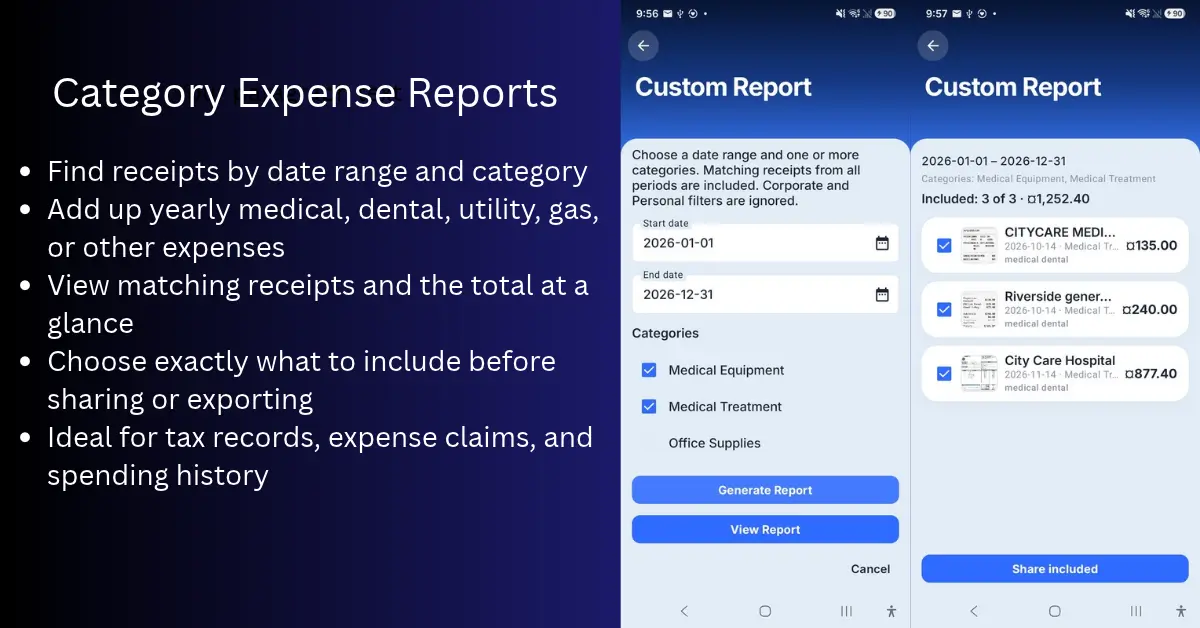
Category Expense Reports are built for a different type of question: “What did I spend on this category during this time period?” Instead of opening one fiscal period at a time, you can choose a date range and one or more categories, then find matching receipts across every fiscal period.
That can be useful when gathering medical, dental, prescription, utility, gas, parking, office, or other expense records. The current year is selected by default, but you can choose another range when you need it. This does not provide tax advice or decide which expenses are eligible; it simply makes it easier to retrieve and organise the records you want to review.
Before sharing, you can view the matching receipts, see the included count and total, open images to confirm details, and uncheck anything that does not belong in that specific report. Once the selection looks right, choose the report format that fits the request and send it by email, save it to your preferred storage, or share it with the app you normally use.
Why review before sharing?
Receipt reports are more useful when you can check them before they leave your phone. Category Expense Reports show the matching receipt count and combined total first. You can open a receipt image to confirm it belongs, remove an item from that one report if it does not, and keep the original receipt stored in the app. This gives you a chance to catch a duplicate, an unrelated purchase, or a category choice that needs another look.
That review step is especially helpful for corporate submissions. Field staff can prepare a clean set of receipts before sending it to the office, and the office receives a more focused report to process. It is also helpful for personal records, where the goal may simply be to understand spending without permanently changing the way every receipt is filed.
Useful for personal, tax, and corporate records
- Personal tracking: review spending on a category such as utilities, vehicle costs, meals, or home-related purchases over a selected period.
- Tax preparation: gather relevant receipts and totals before discussing records with an accountant or preparing your own documentation.
- Corporate submissions: prepare a clear report with the format, structure, and receipt detail your office needs to process expenses from the field. See the territory sales expense reporting overview for a practical field-to-office example.
These uses can overlap. Someone may keep personal records throughout the year, prepare a category report at tax time, and send corporate expenses to an office each month. The important part is being able to retrieve the right records without sorting through an unstructured camera roll or a stack of paper receipts.
A simple reporting routine
- Capture and review receipts as you go: check important details while the purchase is still fresh in your mind.
- Use routine reports for repeat work: choose a format and layout that helps your office or accountant process regular submissions.
- Use Category Expense Reports for focused questions: select a date range and categories when you need to retrieve a specific group of records.
- Review before you share: confirm the total and included receipts, then choose the format that fits this particular request.
This approach will not replace a bookkeeper, accountant, or tax professional. It can, however, make the records you bring to them clearer and easier to work with. That is often enough to save time during monthly administration, reimbursement reviews, and year-end preparation.
Built to improve with real feedback
Reporting needs vary between people, industries, and offices. We do not assume every workflow is already covered. If there is a reporting view, category, export option, or process that would make your records easier to prepare and share, we are happy to hear about it. Real requests help us decide what to improve next.
Scan Pro Receipts aims to be a practical tool: capture the receipt, review the details, organise the record, and produce a report that is useful when the time comes to share it.
Capture once. Retrieve, review, and report when you need to.
Download on Google Play · See reporting features on tj-s.ca · Receipt records for tax time
Related: Reporting Deep Dive · Offline receipt scanner reports · Best offline receipt scanner for reports · Receipt app for tax records
Try Scan Pro Receipts on Google Play
- Free Trial: Get full access with a 2-month free trial via Google Play.
- No Subscriptions: Keep your data private for a one-time lifetime payment of $29.99.
- Explore Features: View the full list of Reporting & Export Features.
- Tax Preparation: See how to organize your Receipt Records for Tax Time.