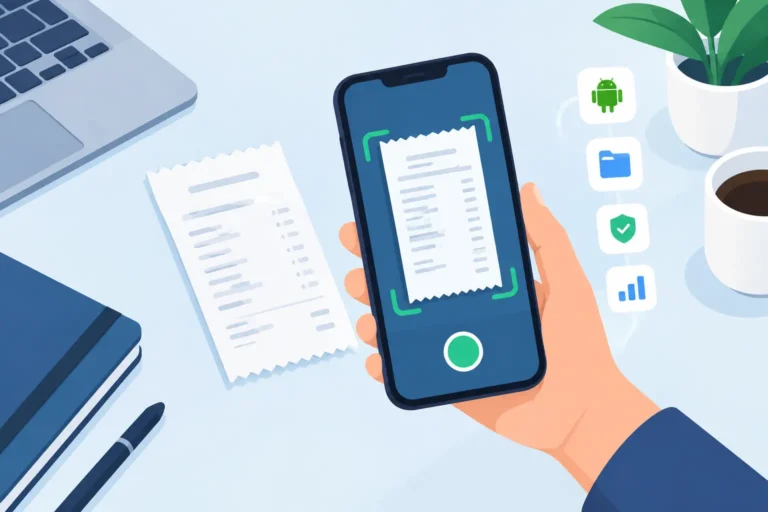
Turn Android receipt photos into organized, reviewable records
Explore Scan Pro Receipts · Try it on Google Play · Free Windows Desktop Companion
A good receipt scanning app for Android should do more than save another picture to your camera roll. It should help you capture a receipt while the print is readable, check the important details, organize the record, and retrieve or share it later without rebuilding everything by hand.
That matters whether you are self-employed, submitting expenses to an office, keeping records for a small business, or simply preserving household purchases for warranties, returns, medical expenses, vehicle maintenance, or tax time. The best workflow is not the one with the longest feature list. It is the one you can use consistently from the moment you receive a receipt to the moment someone asks for it.
What should an Android receipt scanning app do?
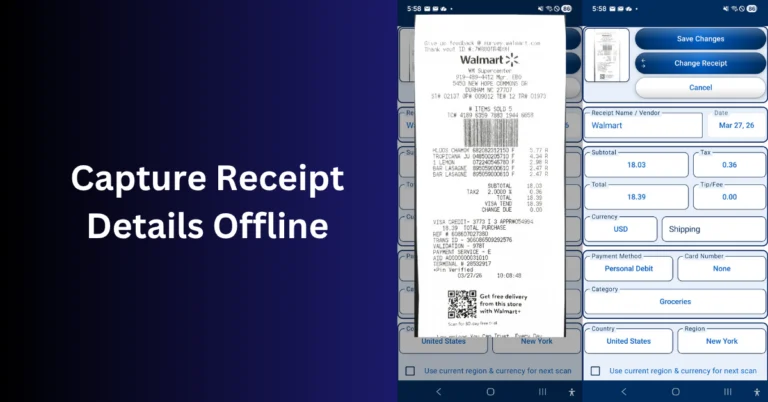
Start with capture options. Paper receipts should be easy to photograph with the phone camera, but an app should also accept images or files already on the device. Digital receipts, emailed invoices, downloaded confirmations, and older receipt photos should not require a separate filing system.
Next, look for optical character recognition (OCR) that extracts useful fields such as the merchant, date, subtotal, tax, total, and currency. OCR saves time, but no receipt scanner reads every faded, folded, unusually formatted, or handwritten receipt perfectly. That is why review matters as much as recognition.
A practical app lets you see and correct the extracted information before filing it. You remain in control of the record instead of discovering months later that a total, date, or merchant name was saved incorrectly.
1. Capture receipts from the camera, gallery, or files
Receipts arrive in different ways. A restaurant or fuel receipt may be on paper, an online purchase may arrive as a downloaded file, and a utility bill may already be stored on your phone. A useful Android receipt scanner brings those sources into one workflow.
- Camera capture for paper receipts at the point of purchase
- Gallery import for receipt images already saved on the phone
- File import for downloaded bills, invoices, and digital receipts
Scanning promptly also protects against fading thermal paper. A clear digital copy captured today is easier to use than a pale slip found in a drawer several months from now.
2. Use OCR as a starting point, not an unquestioned result
OCR should reduce typing without hiding uncertainty. Receipt layouts vary, taxes may appear on several lines, tips can change the final amount, and long store receipts may contain several competing totals. The app should make it easy to inspect and edit the result.
Scan Pro Receipts uses on-device OCR and purpose-built receipt field logic to help fill key details. You can review the fields and make corrections before the receipt becomes part of a report. It does not depend on cloud AI to process your receipt.
3. Keep receipt processing private and available offline
Receipts can reveal where you shop, where you travel, what you buy, and how much you spend. If privacy matters to you, check whether images must be uploaded to a provider before the app can read or organize them.
Local processing also makes receipt capture more dependable. Basements, parking garages, rural routes, job sites, and travel can all have unreliable service. An offline-capable receipt scanning app for Android lets you continue capturing and reviewing records without mobile data, then back them up to a location you choose.
Offline does not remove the need for backups. It gives you control over when and where those backups are stored. For a deeper look at this workflow, read the offline receipt scanner and report export overview.
4. Organize records so you can find them later
A folder full of receipt pictures is difficult to search and even harder to report. Structured fields and sensible organization turn each image into a useful record. Fiscal periods can separate reporting cycles, while projects, customers, or categories help narrow a search to the receipts that matter.
This is useful beyond business expenses. Categories can help organize home repairs, warranty purchases, utilities, medical and dental costs, vehicle maintenance, and other records you may need long after the original paper has faded.
5. Export reports people can actually use
The end goal is often not scanning—it is answering a request. An office may want a readable PDF, a bookkeeper may prefer CSV data for a spreadsheet, and an auditor or warranty provider may need the original receipt image.
- PDF reports for readable summaries and sharing
- CSV exports for spreadsheets and bookkeeping review
- Image-inclusive output when the recipient needs supporting receipt copies
- Custom fields and filenames when an office has its own submission requirements
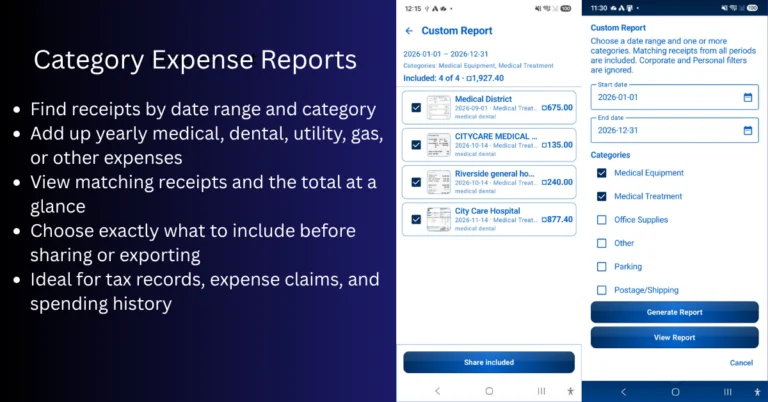
Scan Pro Receipts supports configurable PDF, CSV, and receipt-image exports. Its Category Expense Reports let you choose a date range and categories, review the matching records, remove anything that does not belong, and select the output needed for that request. See the reporting walkthrough for examples.
6. Continue on a larger screen with a free desktop companion
Phone capture is convenient, but reviewing many records can be easier at a desk. The free Scan Pro Desktop Companion for Windows lets you import a Scan Pro archive, review and filter receipts on a larger screen, make batch edits, and export reports. The companion is free and extends the workflow without adding another monthly subscription.
A simple receipt workflow on Android
- Capture: photograph the paper receipt or import an existing image or file.
- Review: check the merchant, date, subtotal, tax, total, currency, and any notes while the purchase is still familiar.
- Organize: place the receipt in the correct fiscal period, project, customer, or category.
- Back up: keep a second copy in a storage location you control.
- Export: create the PDF, CSV, or image package required by your office, bookkeeper, accountant, or personal filing system.
Doing the first three steps when you receive the receipt is usually faster than sorting a month of faded slips later. For a real-world example, read why I built Scan Pro Receipts after years of territory sales expenses.
Is Scan Pro Receipts the right fit?
Scan Pro Receipts is designed for people who want an Android receipt scanner focused on capture, review, organization, and reporting. It works offline, keeps receipt processing on the device, has no ads, and offers a two-month free trial followed by a one-time lifetime purchase rather than a monthly subscription.
It may not be the right choice if you need a cloud team inbox, automatic publishing into an accounting platform, cashback, rewards, or receipt-based income. It is a record-keeping and reporting tool for personal and business expenses.
Capture once. Review the details. Build the report when you need it.
Try Scan Pro Receipts on Google Play · Explore app features · Get the free Windows companion
Related: Best offline receipt scanner app for reports · Receipt app for tax records · Offline reports and exports · Lifetime receipt app versus subscriptions
Try Scan Pro Receipts on Google Play
- Free Trial: Get full access with a 2-month free trial via Google Play.
- No Subscriptions: Keep your data private for a one-time lifetime payment of $29.99.
- Explore Features: View the full list of Reporting & Export Features.
- Tax Preparation: See how to organize your Receipt Records for Tax Time.